Connecting the App Store
Set up your App Store Connect API key to sync iOS reviews.
What you need
You need an Apple Developer account with access to App Store Connect. You also need the Account Holder or Admin role to create API keys.
The setup takes about 5 minutes.
Step 1: Create an API key
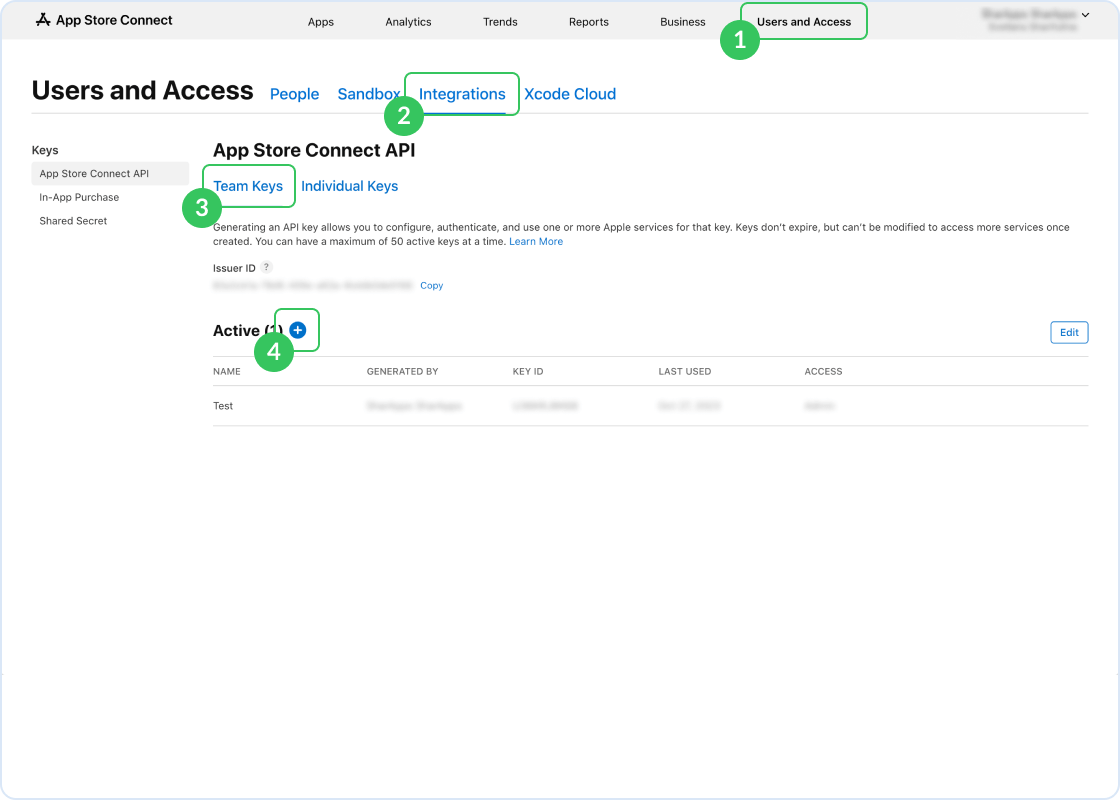
Go to appstoreconnect.apple.com and click "Users and Access" in the top navigation bar. Switch to the "Integrations" tab, select "Team Keys", and click the Add (+) button to generate a new key. Name it "ReviewMob" and select the "Customer Support" access level.
Step 2: Download the key file
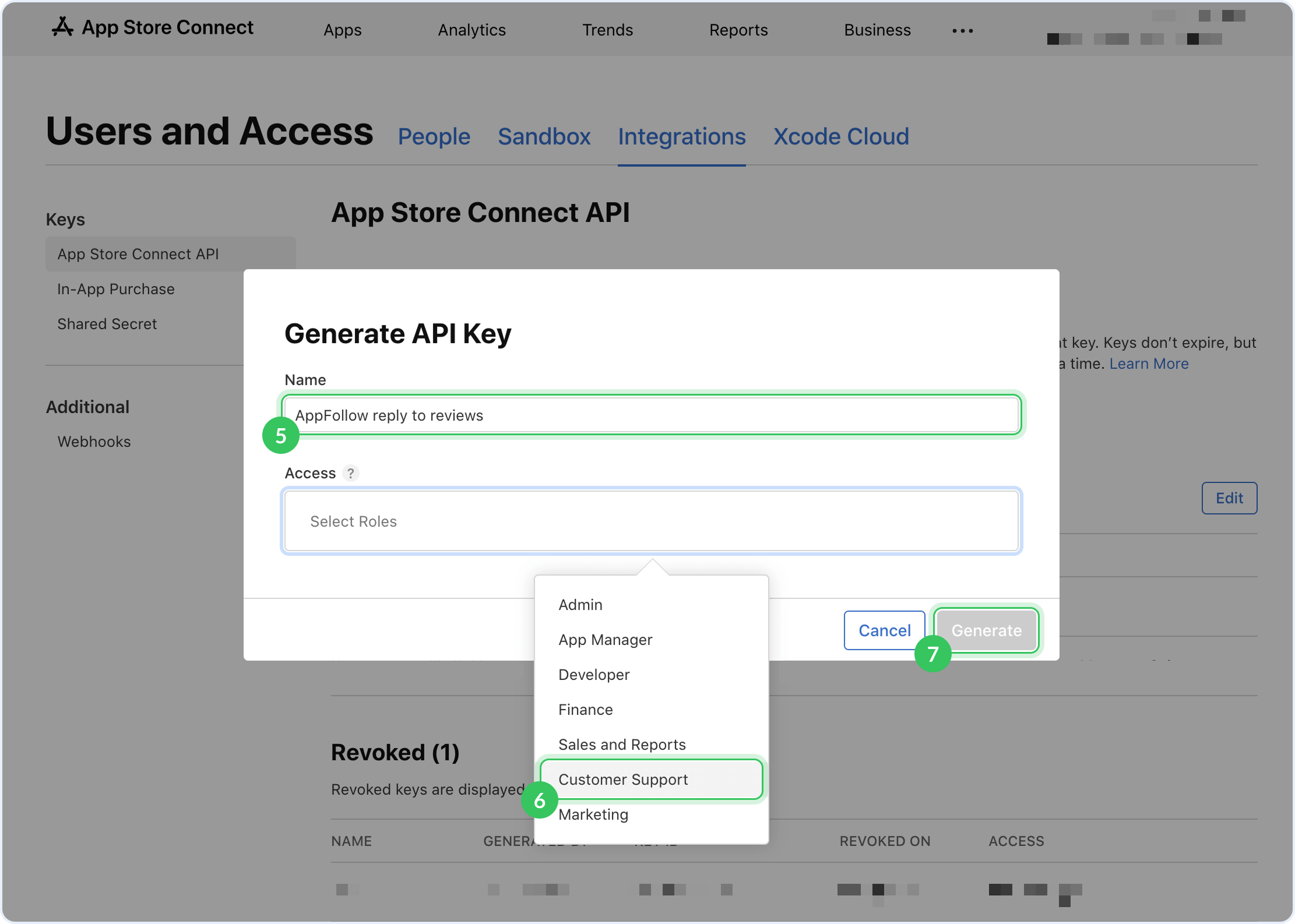
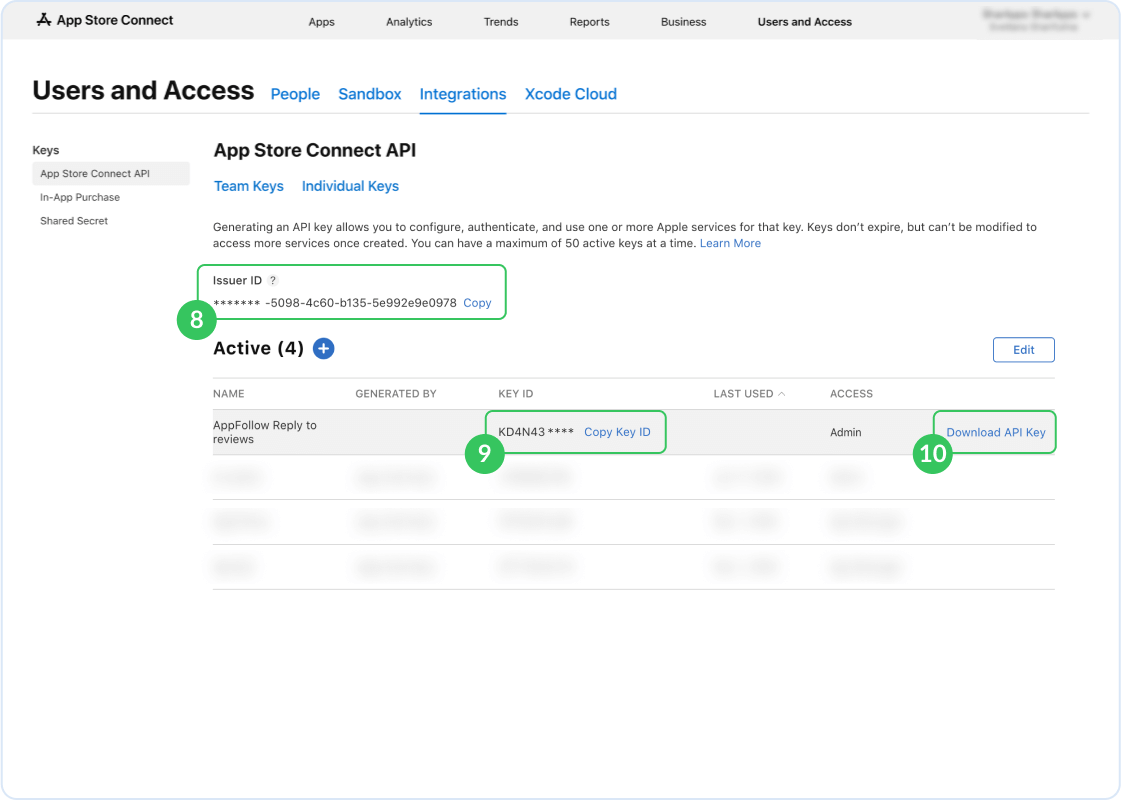
Enter the name "ReviewMob reply to reviews" and select the "Customer Support" access level. Click "Generate". After creating the key, click "Download API Key". The file will be named AuthKey_XXXXXX.p8.
Apple only lets you download the key file once. If you lose it, you will need to create a new key.
Step 3: Note your Key ID and Issuer ID
On the same page, copy your Issuer ID (shown at the top of the page) and your Key ID (shown next to the key name). You will need both of these in the next step.
Step 4: Upload credentials in ReviewMob
Go to ReviewMob Settings > Connections > App Store. Enter your Key ID, Issuer ID, and upload or paste the .p8 private key. Click "Test Connection" to verify.
The App Store API returns all historical reviews (not just the last 7 days like Google Play), so your first sync may take a few minutes if your app has thousands of reviews.